> ## Documentation Index
> Fetch the complete documentation index at: https://docs.tc.xyz/llms.txt
> Use this file to discover all available pages before exploring further.
# Navigating the app
> A walkthrough of the TrueCurrent mobile app interface - tabs, screens, and where to find everything.
The TrueCurrent mobile app is organized around four tabs at the bottom of the screen: **Home**, **Markets**, **Profile**, and **Search**.
## Home
Your starting screen and portfolio hub. Before you add funds, Home shows an **Add funds to start trading** prompt with two options:
* **Deposit cash**: Fund with a card or transfer via MoonPay, Binance, or Coinbase.
* **Deposit crypto**: Fund with USDC or other supported crypto.
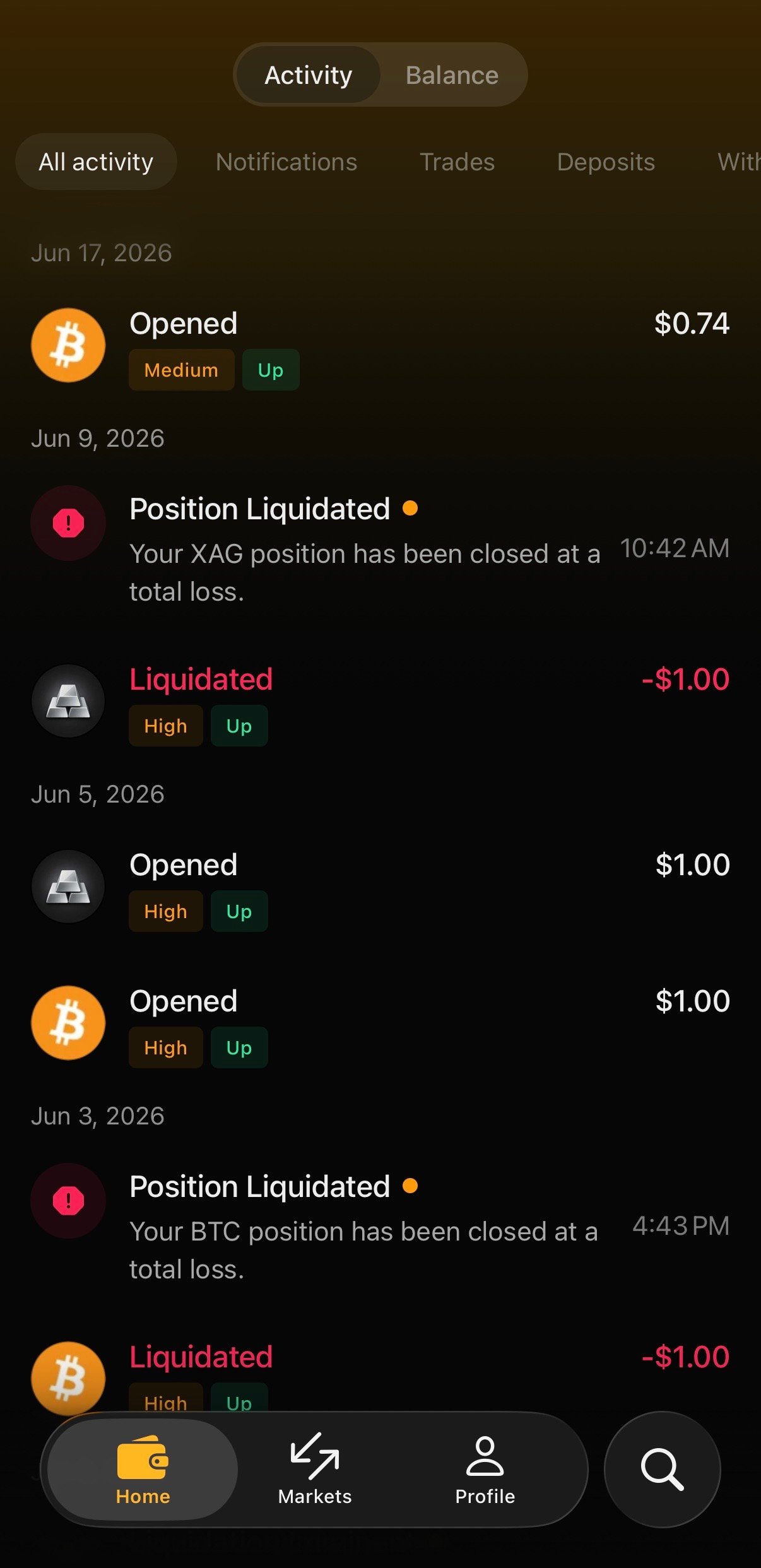
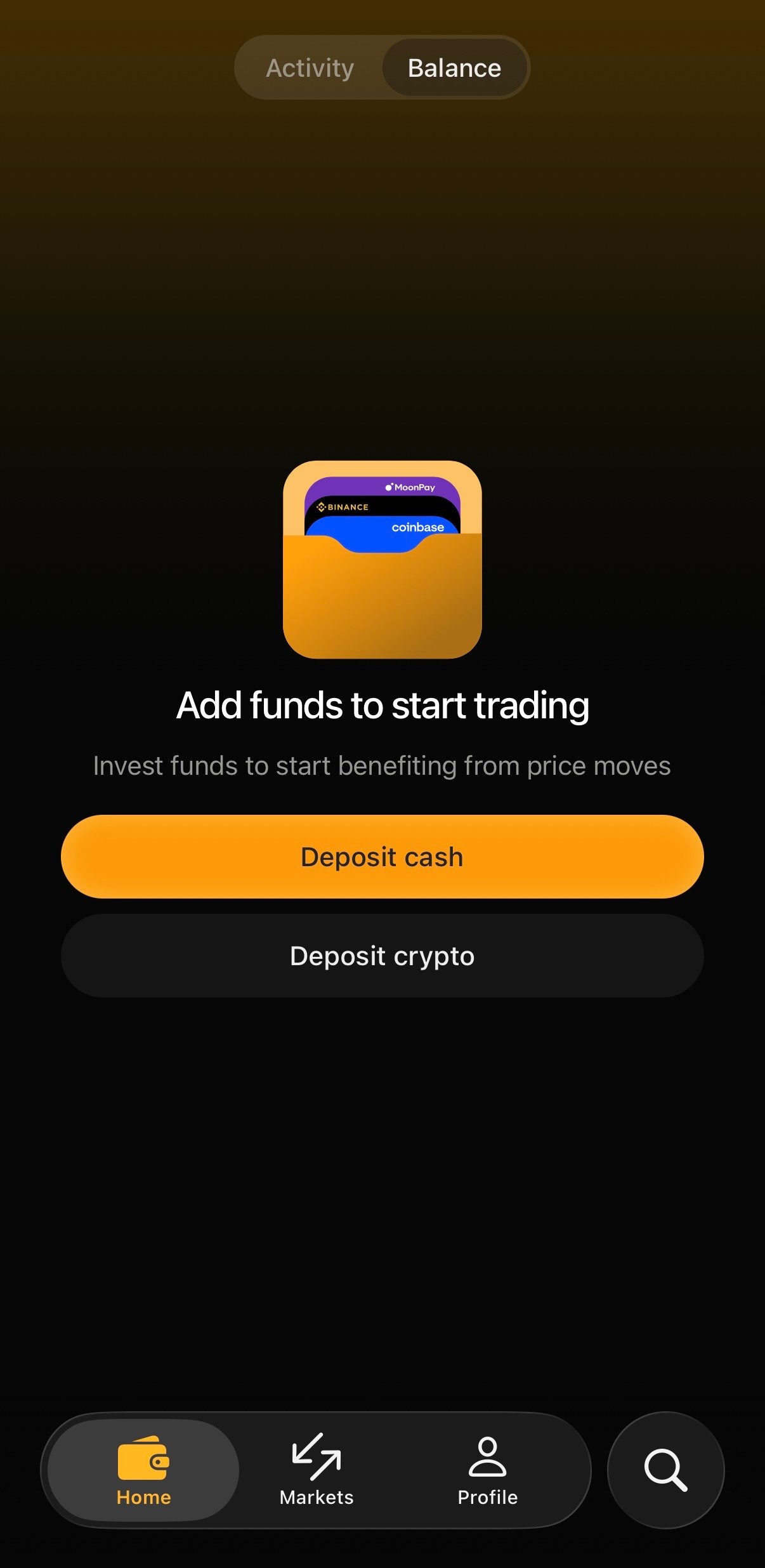 Once funded, Home shows your cash balance and active positions. Tap the **Activity tab** at the top of the screen to view your past transactions and activity.
 ## Markets
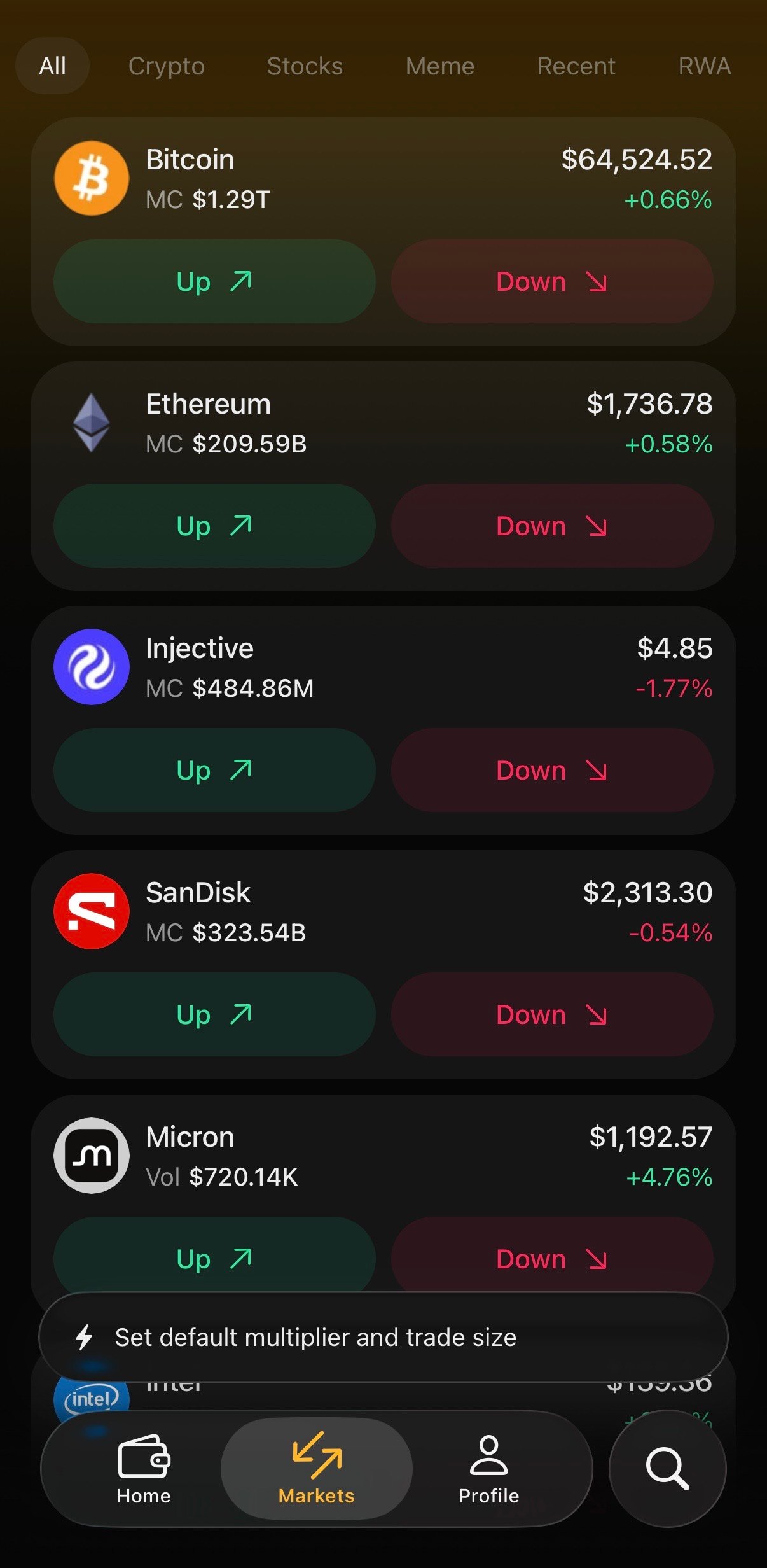
Browse everything you can trade. Filter by category using the tabs across the top:
* **All** · **Crypto** · **Stocks** · **Meme** · **Recent** · **RWA** · **Trending**
Each asset card shows its name, 24h volume or market cap, current price, and 24h change. Two quick-action buttons let you take a position directly from the list:
* **Up ↗** (in green): Makes a profit if the price goes up.
* **Down ↘** (in red): Makes a profit if the price goes down
Tap a card to open the full trading screen with the chart and order details.
## Markets
Browse everything you can trade. Filter by category using the tabs across the top:
* **All** · **Crypto** · **Stocks** · **Meme** · **Recent** · **RWA** · **Trending**
Each asset card shows its name, 24h volume or market cap, current price, and 24h change. Two quick-action buttons let you take a position directly from the list:
* **Up ↗** (in green): Makes a profit if the price goes up.
* **Down ↘** (in red): Makes a profit if the price goes down
Tap a card to open the full trading screen with the chart and order details.
 ## Profile
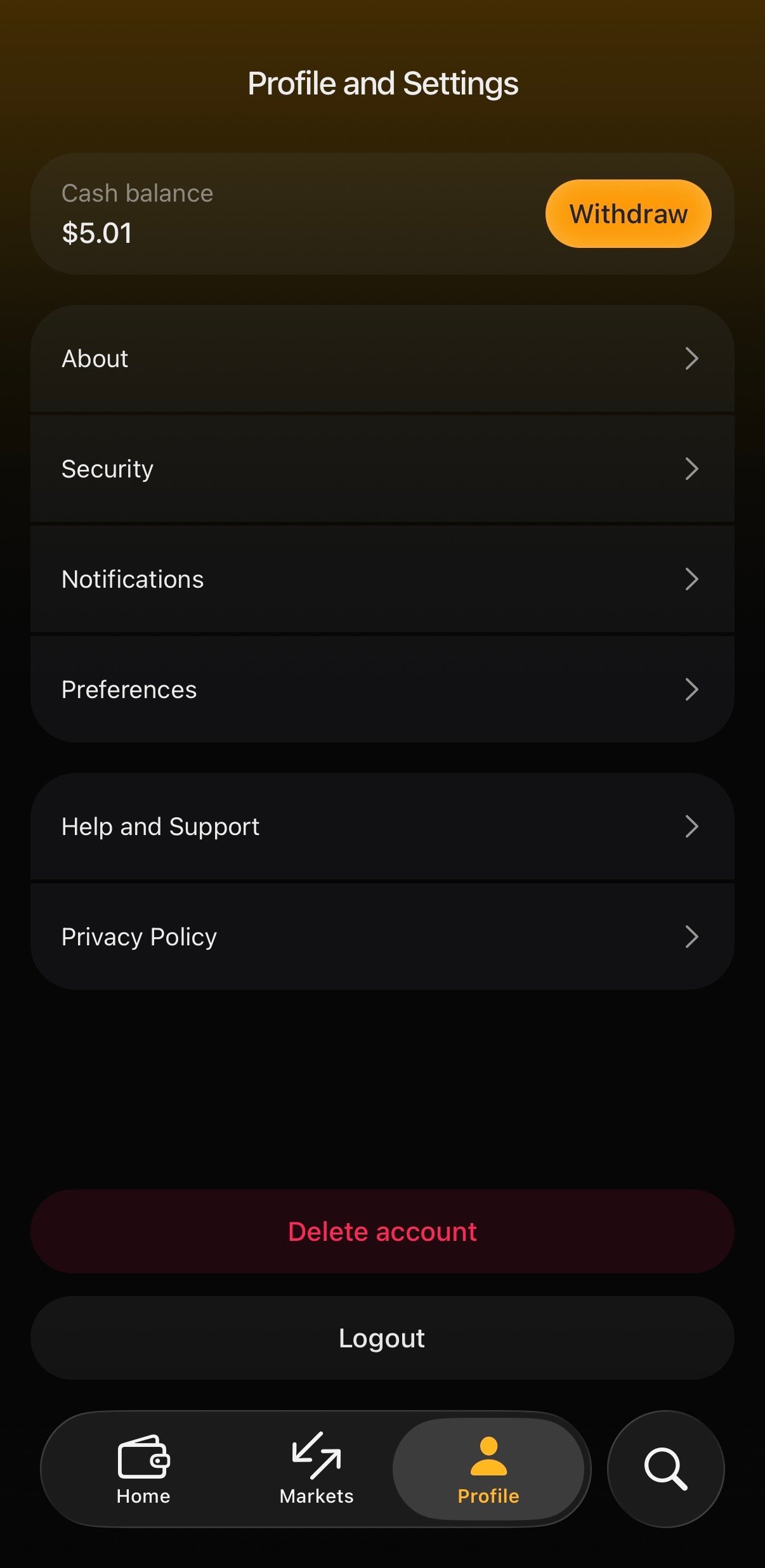
Tap **Profile** to open **Profile and Settings**. At the top you'll see your **Cash balance** with a **Deposit** button. Below are your account settings:
* **About**: App and account information
* **Security**: Sign-in security and biometric lock
* **Notifications**: Manage push notification preferences
* **Preferences**: Default slippage, language, and display options
* **Help and Support**: Guides and contact options
* **Privacy Policy**
At the bottom you'll find **Delete account** and **Logout**.
## Profile
Tap **Profile** to open **Profile and Settings**. At the top you'll see your **Cash balance** with a **Deposit** button. Below are your account settings:
* **About**: App and account information
* **Security**: Sign-in security and biometric lock
* **Notifications**: Manage push notification preferences
* **Preferences**: Default slippage, language, and display options
* **Help and Support**: Guides and contact options
* **Privacy Policy**
At the bottom you'll find **Delete account** and **Logout**.
 ## Search
Quickly find any market by name or ticker. Tap **Search**, type a few letters, and jump straight to the asset you want to trade.
## Search
Quickly find any market by name or ticker. Tap **Search**, type a few letters, and jump straight to the asset you want to trade.