> ## Documentation Index
> Fetch the complete documentation index at: https://docs.tc.xyz/llms.txt
> Use this file to discover all available pages before exploring further.
# Trading on mobile
> Open, manage, and close positions from your phone with the same zero-fee RFQ execution as desktop.
Trading on mobile works exactly the same as desktop: Zero taker fees, best-price RFQ execution, sub-second settlement.
## Opening a position
### 1. Pick a market
From the **Markets** tab, browse by category (**All**, **Crypto**, **Stocks**, **Meme**, **RWA**, **Trending**) or use **Search** to find an asset. Tap a card to open its trading screen.
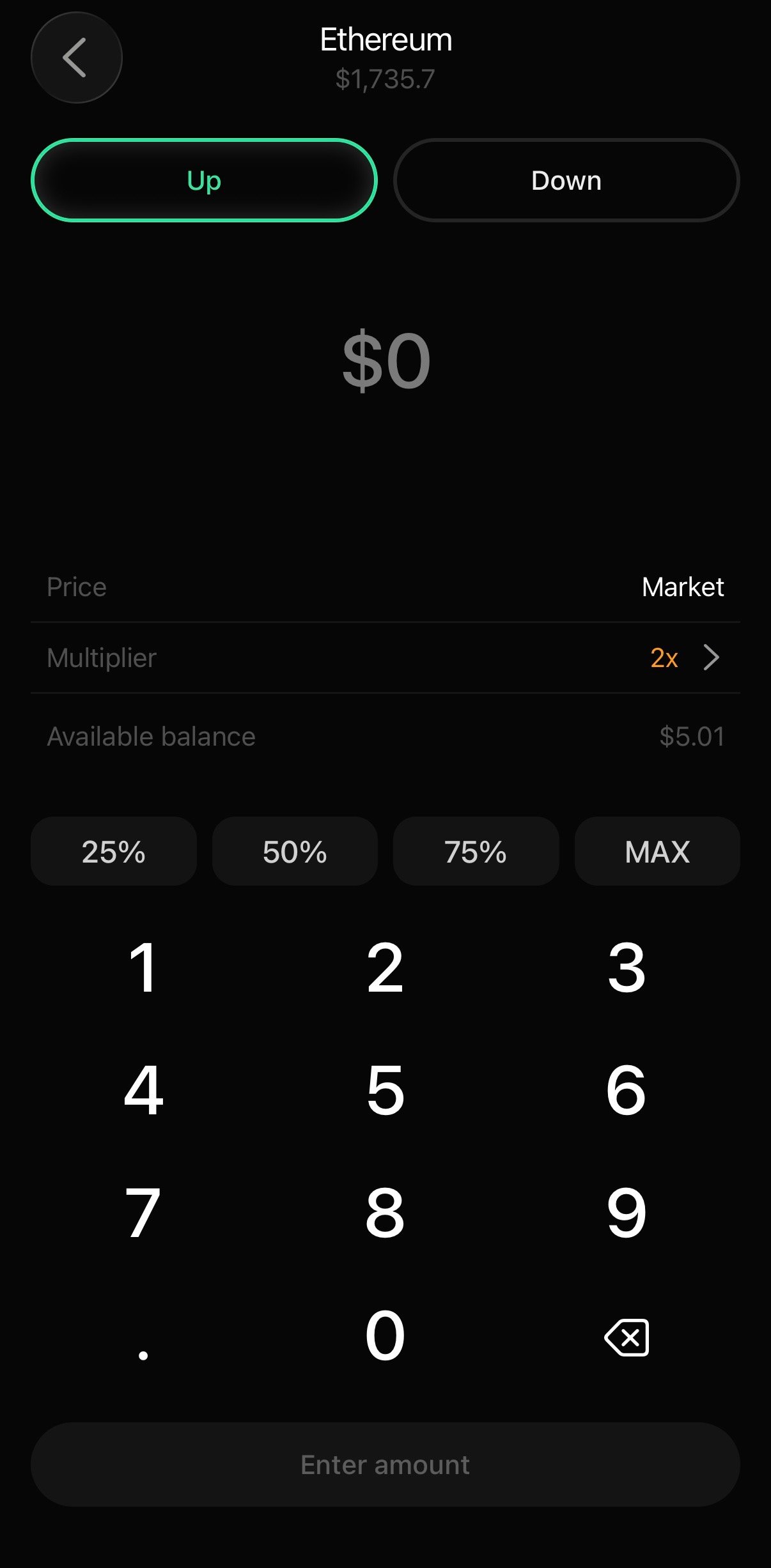
### 2. Choose Up or Down
* **Up ↗**: You profit when the price goes up.
* **Down ↘**: You profit when the price goes down.
You can tap **Up** or **Down** straight from the Markets list for a quick entry, or open the full trading screen first.
 ### 3. Set amount and leverage
Enter the USDC amount you want to use and adjust leverage. Each market shows a risk level (for example, **Medium**).
```text theme={null}
Position size = Amount × Leverage
```
For example, 50 USDC at 5x = 250 USDC position. See [Margin trading](/trading/margin-trading) for details.
### 3. Set amount and leverage
Enter the USDC amount you want to use and adjust leverage. Each market shows a risk level (for example, **Medium**).
```text theme={null}
Position size = Amount × Leverage
```
For example, 50 USDC at 5x = 250 USDC position. See [Margin trading](/trading/margin-trading) for details.
 Leverage amplifies **both** gains and losses.
### 4. Set price tolerance
Your **slippage** determines the worst price you'll accept. The default 0.5% works for most conditions. Tap the slippage value to adjust.
### 5. Confirm
Review the estimated price and worst-case price, then confirm. Your trade fills in under one second.
## Managing positions
Your open positions appear on the **Home** tab. Tap the **Activity tab** on the top of the screen to review past activity. From any position you can:
* **Add margin**: push your liquidation price further away if it's getting close
* **Set or modify TP/SL**: enter your take-profit and stop-loss target prices. You can also set TP/SL at order entry before confirming. See [Trigger orders](/trading/trigger-orders)
* **Partial close**: reduce your position size without closing entirely
You can use TP/SL to keep your risk managed automatically, when you step away from your device.
## Closing a position
1. Open the position from your **Home** tab
2. Tap **Close**
3. Choose full or partial close
4. Set slippage and confirm
The close executes through the same [RFQ flow](/technical/how-rfq-works). Released funds return to your available balance immediately.
Leverage amplifies **both** gains and losses.
### 4. Set price tolerance
Your **slippage** determines the worst price you'll accept. The default 0.5% works for most conditions. Tap the slippage value to adjust.
### 5. Confirm
Review the estimated price and worst-case price, then confirm. Your trade fills in under one second.
## Managing positions
Your open positions appear on the **Home** tab. Tap the **Activity tab** on the top of the screen to review past activity. From any position you can:
* **Add margin**: push your liquidation price further away if it's getting close
* **Set or modify TP/SL**: enter your take-profit and stop-loss target prices. You can also set TP/SL at order entry before confirming. See [Trigger orders](/trading/trigger-orders)
* **Partial close**: reduce your position size without closing entirely
You can use TP/SL to keep your risk managed automatically, when you step away from your device.
## Closing a position
1. Open the position from your **Home** tab
2. Tap **Close**
3. Choose full or partial close
4. Set slippage and confirm
The close executes through the same [RFQ flow](/technical/how-rfq-works). Released funds return to your available balance immediately.