
The TrueCurrent mobile app is organized around four tabs at the bottom of the screen: Home, Markets, Profile, and Search.

Home

Your starting screen and portfolio hub. Before you add funds, Home shows an Add funds to start trading prompt with two options:
  • Deposit cash: Fund with a card or transfer via MoonPay, Binance, or Coinbase.
  • Deposit crypto: Fund with USDC or other supported crypto.
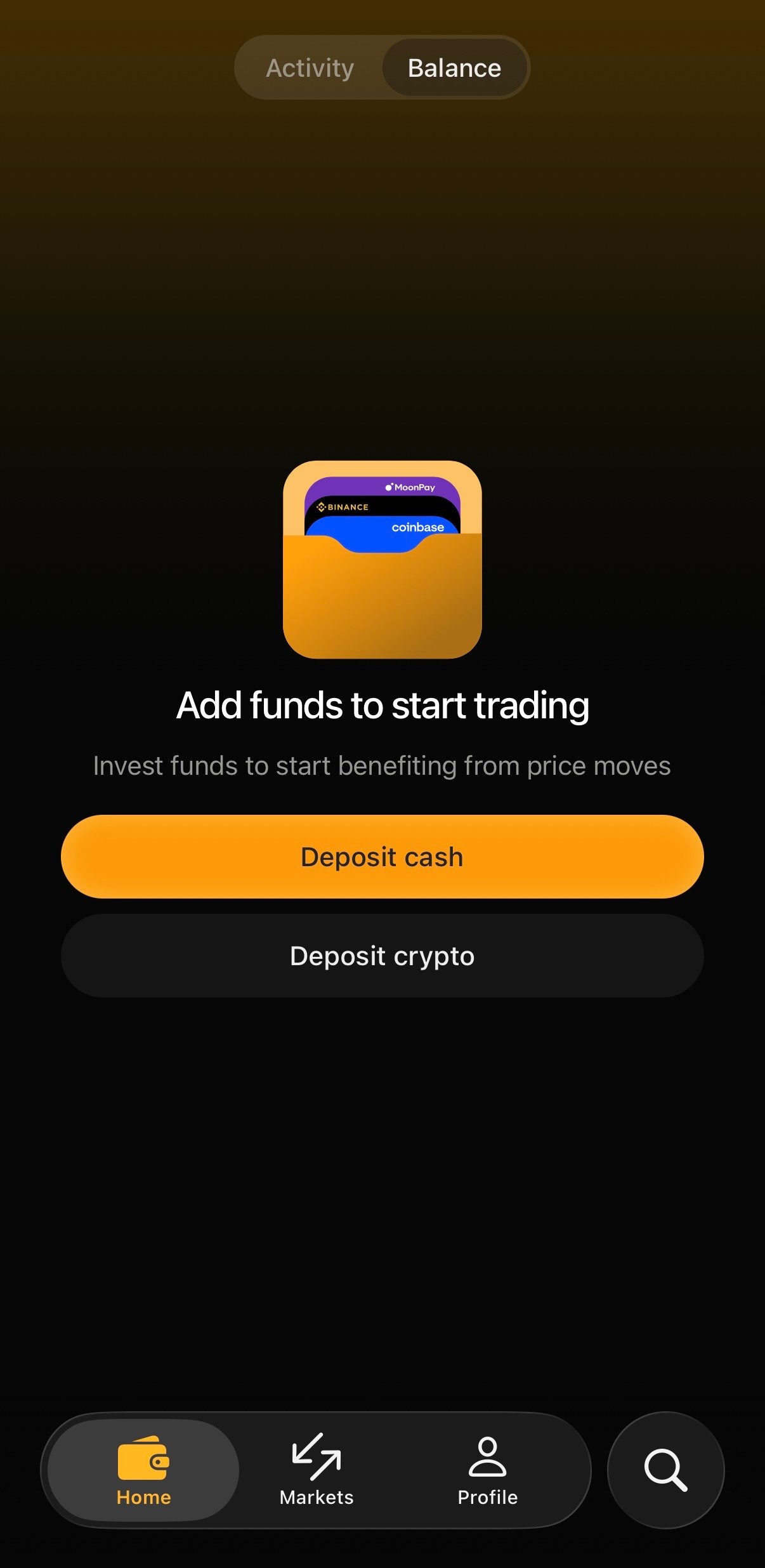
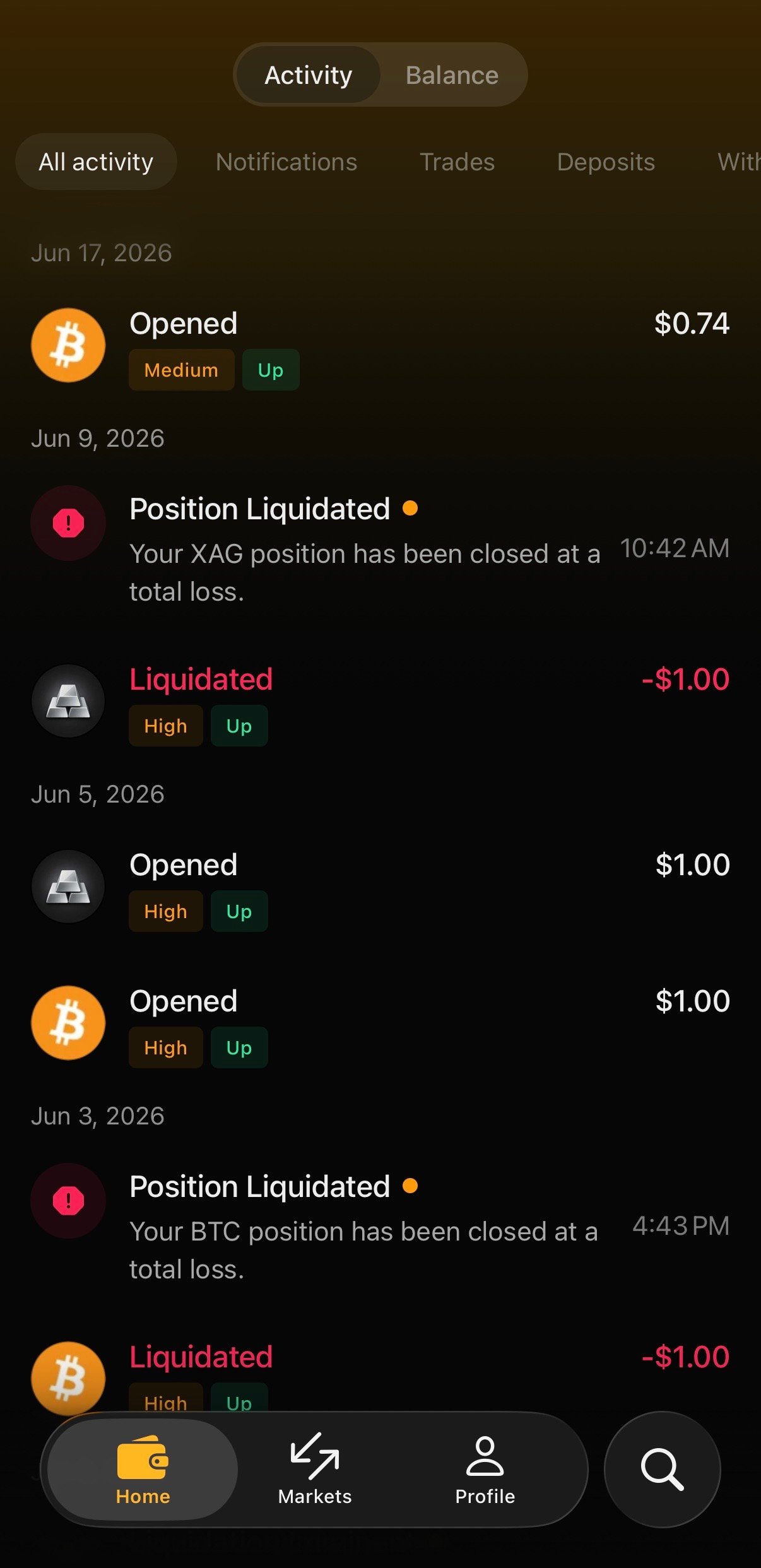
Home tab showing the Add funds to start trading empty state. Once funded, Home shows your cash balance and active positions. Tap the Activity tab at the top of the screen to view your past transactions and activity. Activity tab showing recent activity including opened positions and liquidations.

Markets

Browse everything you can trade. Filter by category using the tabs across the top:
  • All · Crypto · Stocks · Meme · Recent · RWA · Trending
Each asset card shows its name, 24h volume or market cap, current price, and 24h change. Two quick-action buttons let you take a position directly from the list:
  • Up ↗ (in green): Makes a profit if the price goes up.
  • Down ↘ (in red): Makes a profit if the price goes down
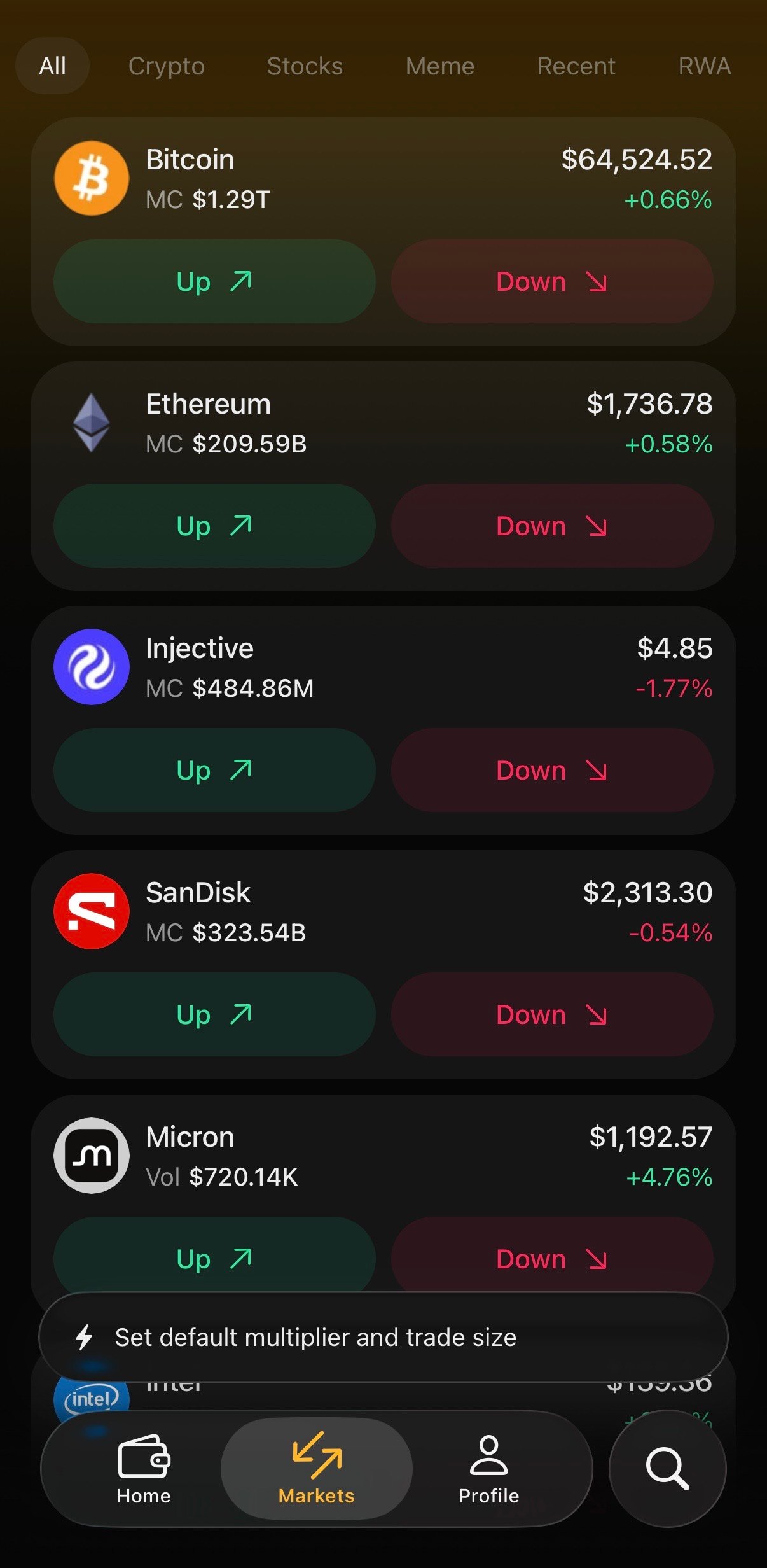
Tap a card to open the full trading screen with the chart and order details. Markets tab showing the asset list with Up and Down buttons.

Profile

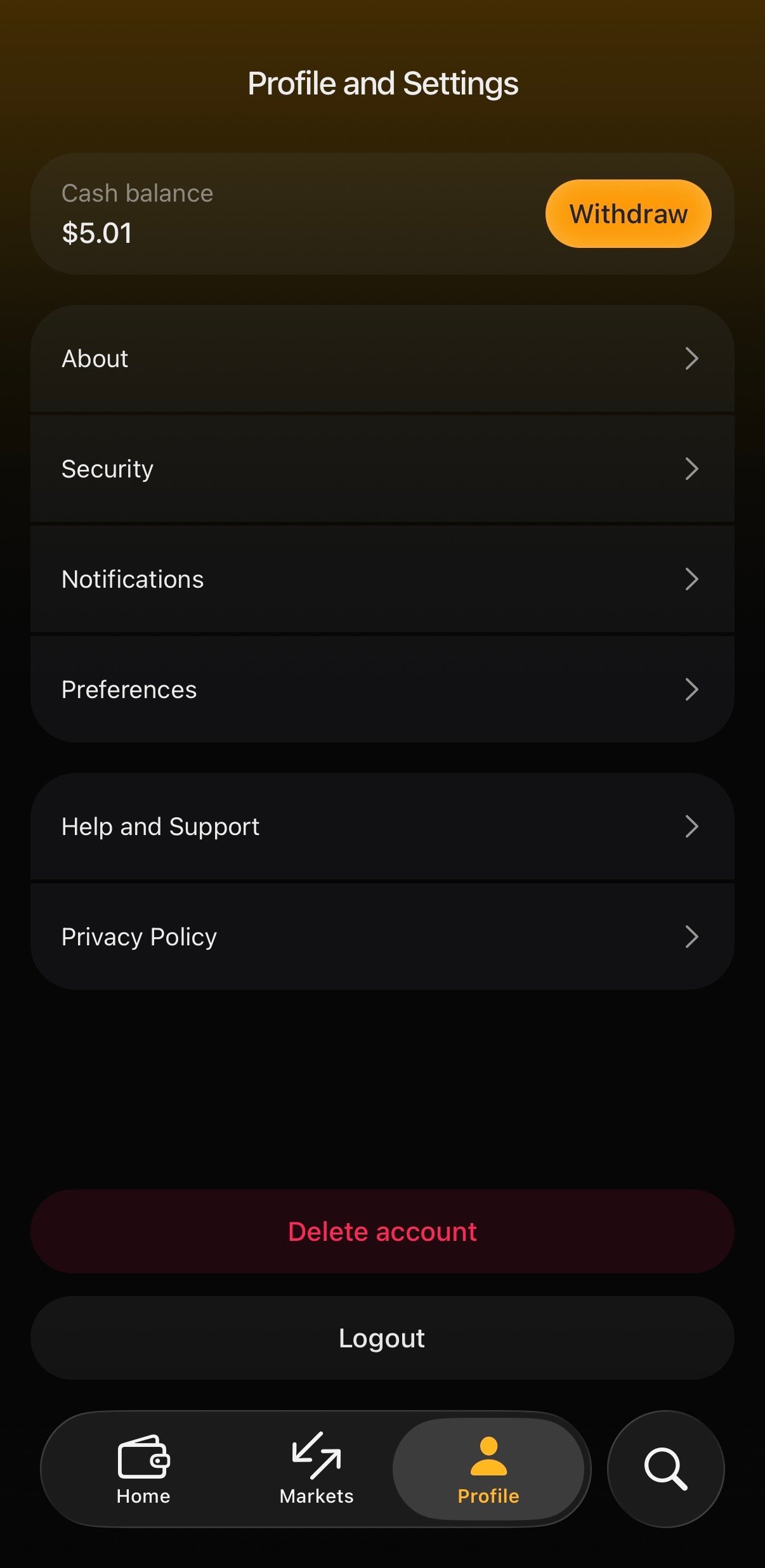
Tap Profile to open Profile and Settings. At the top you’ll see your Cash balance with a Deposit button. Below are your account settings:
  • About: App and account information
  • Security: Sign-in security and biometric lock
  • Notifications: Manage push notification preferences
  • Preferences: Default slippage, language, and display options
  • Help and Support: Guides and contact options
  • Privacy Policy
At the bottom you’ll find Delete account and Logout. Profile and Settings screen. Quickly find any market by name or ticker. Tap Search, type a few letters, and jump straight to the asset you want to trade.
Last modified on June 22, 2026