

Opening a position
1. Pick a market
From the Markets tab, browse by category (All, Crypto, Stocks, Meme, RWA, Trending) or use Search to find an asset. Tap a card to open its trading screen.2. Choose Up or Down
- Up ↗: You profit when the price goes up.
- Down ↘: You profit when the price goes down.

3. Set amount and leverage
Enter the USDC amount you want to use and adjust leverage. Each market shows a risk level (for example, Medium).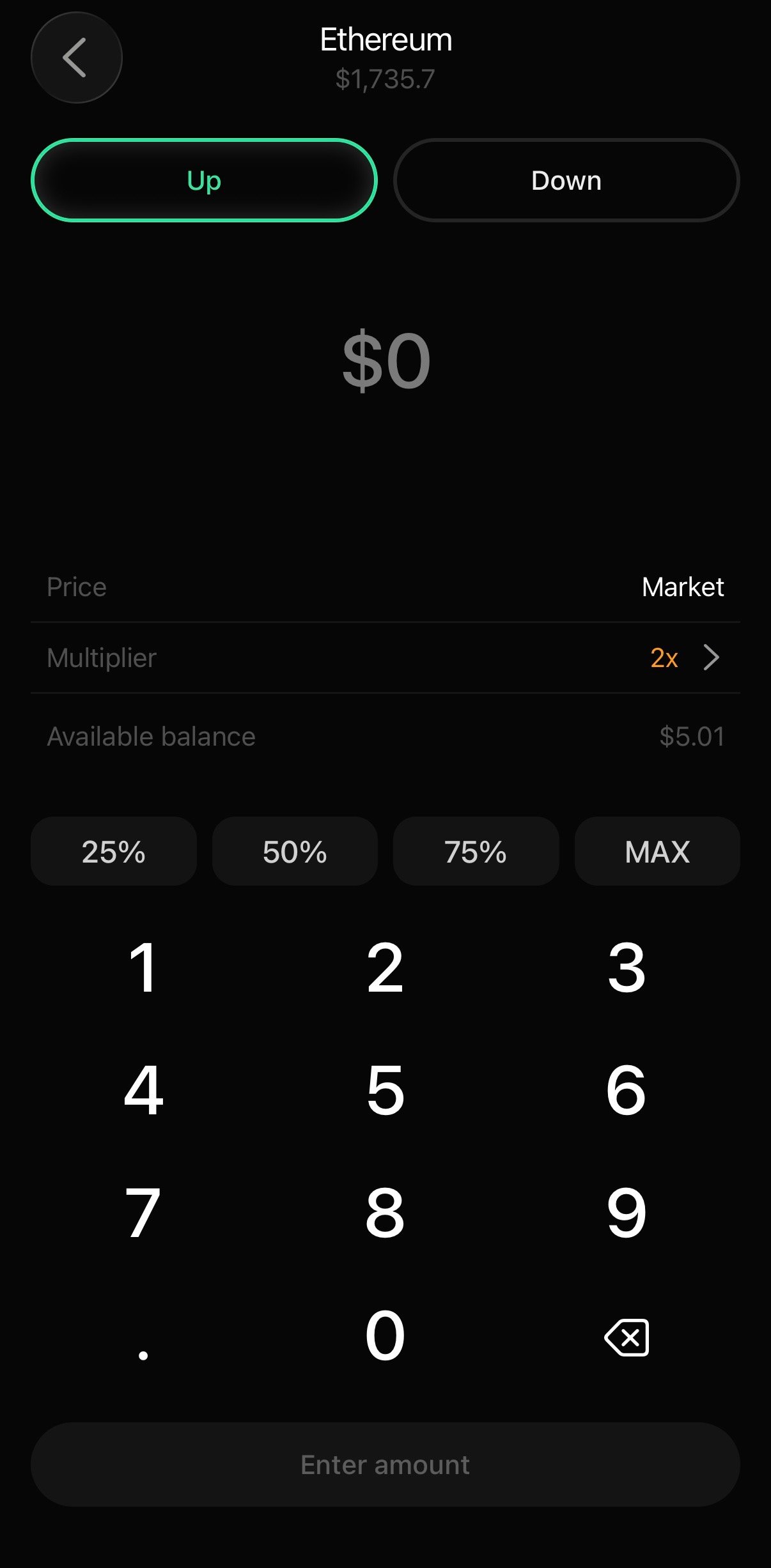
4. Set price tolerance
Your slippage determines the worst price you’ll accept. The default 0.5% works for most conditions. Tap the slippage value to adjust.5. Confirm
Review the estimated price and worst-case price, then confirm. Your trade fills in under one second.Managing positions
Your open positions appear on the Home tab. Tap the Activity tab on the top of the screen to review past activity. From any position you can:- Add margin: push your liquidation price further away if it’s getting close
- Set or modify TP/SL: enter your take-profit and stop-loss target prices. You can also set TP/SL at order entry before confirming. See Trigger orders
- Partial close: reduce your position size without closing entirely
You can use TP/SL to keep your risk managed automatically, when you step away from your device.
Closing a position
- Open the position from your Home tab
- Tap Close
- Choose full or partial close
- Set slippage and confirm